Step 3: Staff responding to their invitation
The staff member receives their invitation by email. If they choose to participate and share feedback then they simply click the button in their email and are taken to their own conversation page.
On this conversation page, they will be able to see the name of the person who started the conversation and who responds to any comments they make. The name displayed will be that of the logged-in user when the response is sent. We want to ensure that staff are confident in sending further open replies.
To share feedback, ideas, comments, or questions they simply write this in the space provided and click the submit button. You can see this in the image below, where they comment below the message that has been sent.
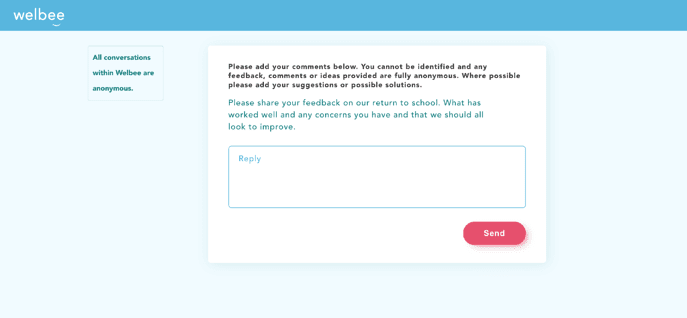
While the staff member will know who is responding to them, if further comments are made, users will never know who they are communicating with unless the staff member reveals their identity.
On this conversation page, they will be able to see the name of the person who sends any further responses to them. The name displayed will be that of the logged-in user when the response is sent. We want to ensure that staff are confident in sending further open replies.
Related Articles
Step 5: Responding to staff comments
From the Conversations menu you can continue to respond and interact with any staff comments as long as needed. This allows you to create ongoing and open conversations, address concerns, seek ideas and solutions or use it in the way that best ...Step 4: Receiving staff comments
After staff members make comments these are sent to the dashboard and the conversation owner is also alerted by email. When staff members make comments, these arrive in your Conversations dashboard and the owner of the conversation will receive an ...Step 2: Starting conversations and issuing staff invitations
When you successfully upload your staff details you will automatically be taken to your conversation dashboard. This is also where you go to start any further conversations and issue staff invitations. To issue your first and subsequent invitations, ...Step 1: Setting up your account
The first thing is to set up your account so you can start to ask staff for their feedback. Add staff records You will need to add your staff members details and you can do this within the Staff Management tab on your menu on the left of your ...How does Welbee Voice work?
Welbee Voice is very simple to access and use. After adding your staff records, the only administration needed, it is just like sending and receiving an email. These instructions cover the period when you are in your free trial and when you have ...